What is remote gaming? Playing your own PC from anywhere
What actually makes traveling as a PC gamer feel bad? Is it the tiny screen? The cramped keyboard? Or is it the two grand you lost buying a heavy gaming laptop when you already own a powerful rig?
Remote gaming is simply playing the games installed on your home PC from another device over the internet. Your home PC runs the heavy graphics and streams the video to your phone, tablet, or work laptop. Your taps and clicks get sent back in real time. It turns a cheap $200 travel device into an RTX-powered beast.
How does remote gaming actually work?
Think of it like a long-distance puppet string. You move the control sticks exactly where you are, the puppet dances miles away on a stage you built, and a camera broadcasts the entire show back to you. The illusion is so complete that your brain forgets the distance between your hands and the hardware.
To pull off this illusion, your software has to execute a complex technical loop dozens of times every single second. It starts with input capture. When you click your mouse or press a key, the client software records that exact mechanical action.
Next comes network transmission. Those tiny input commands are packaged into data packets and fired across the internet to your home IP address. Because input data is essentially just text coordinates and button states, it requires almost zero bandwidth to travel.
Once the command arrives, game rendering takes over. The game engine running on your home PC registers the input and calculates the next frame of the game. Your graphics card renders the lighting, the textures, and the geometry just as it would if you were sitting at your desk.
But back to the process. Before that frame can be sent to you, it goes through video encoding. Modern graphics cards have dedicated hardware built specifically to grab the visual output and compress it into a video stream instantly. This prevents the raw, uncompressed video from clogging your internet connection.
Finally, the compressed frame travels back to you for video decoding. The device in your hands receives the video packet, unzips the compression, and paints the image onto your screen.
Because the heavy lifting happens entirely on your home graphics card, the client device doesn’t matter much. Whether that’s an old office laptop, a tablet on the couch, or a phone at the airport. You’re essentially just watching an interactive video feed while holding the remote control.
What is the difference between remote gaming and cloud gaming?
| Feature | Remote Gaming | Cloud Gaming |
|---|---|---|
| Hardware Ownership | You play on the PC you already own. | You rent a server from a massive corporation. |
| Monthly Cost | Generally free or low one-time costs. | Recurring monthly subscription fees. |
| Game Library | You play the games you bought, including mods. | You are limited to the provider’s licensing catalog. |
| Save Files | Stored locally on your own hard drive. | Stored on corporate cloud servers. |
The biggest dividing line between these two technologies is ownership. Cloud gaming means renting a server from a massive corporation. You log into a service, borrow a slice of a server rack in a data center somewhere, and stream a game from their library.
Remote gaming means playing the hardware you already bought. You’re the server administrator, the hardware owner, and the sole user. You dictate the specs, the storage, and the operating system.
This is an example of how you not only save on exorbitant monthly subscription fees, but also keep all your mods and local save files in one place. If a publisher decides to pull their title from a cloud service, cloud gamers lose access instantly. With remote gaming, if the file sits on your own hard drive, nobody can take it away from you.
Cloud gaming is not the villain here—it requires zero hardware ownership, which is great for total beginners who just want to try a new release without spending a thousand dollars on a graphics card. But if you already have the hardware sitting in your bedroom, renting a worse version of it makes no sense. Remote gaming is definitely vastly superior if you already own a gaming PC.
What kind of internet connection do you need?
Your remote gaming experience lives and dies by network conditions. A standard internet connection is split into two halves: the upload speed of your home internet, and the download speed of your current location.
Most people only ever think about download speeds. Residential internet providers frequently sell asymmetrical packages, giving you massive download pipes and tiny upload pipes. But when you become your own server, upload speed is the only thing that matters at home. Your home network has to push a dense, constant video stream out into the world. If your home upload speed chokes, your video feed turns into a blocky, unplayable mess.
At your current location—the hotel, the coffee shop, or the airport—you rely entirely on download speed and stability. You need a network that can catch the heavy video feed without dropping packets.
Network conditions dictate the experience, but the requirements are lower than you might assume. In an informal founder test from July 2026, we measured about 10ms of added latency on a phone hotspot versus home Wi-Fi, using a Windows gaming PC host and a browser client on the same laptop via a US mobile hotspot. This shows how playable the experience can be even on cellular networks, provided you have a stable signal.
How do you bypass strict networks and firewalls?
Setting up remote access used to require an afternoon of frustrating router configuration. You had to log into your home router’s admin panel, assign a static IP address to your gaming PC, and manually configure port forwarding to punch a hole through your home firewall.
This headache gets worse when you travel. Many public networks block unknown traffic. If you try to connect back home from a corporate office or a campus network, their strict firewalls often kill the connection before it even starts. Additionally, many modern internet providers use Carrier-Grade NAT (CGNAT), which means you don’t even get a public IP address to connect to in the first place.
Modern tools bypass this entirely. Axiom requires no port forwarding or router configuration. When you initiate a connection, the software establishes a direct connection between devices when networks allow. It automatically falls back to Axiom’s relay servers when a network blocks the direct path. Whether that’s strict Wi-Fi, a locked-down hotel network, or a campus firewall. This shows how you can reliably reach your home PC regardless of the network restrictions at your travel destination.
Security is a massive concern when punching holes through networks, especially when traveling. Sessions are encrypted to keep your data secure on public hotel Wi-Fi. This shows how you can safely transmit your passwords and personal files even when sharing a network with strangers.
What are the best tools for remote gaming?
The software ecosystem for streaming your desktop has matured significantly, giving you several excellent options depending on your technical comfort level.
Sunshine and Moonlight represent the gold standard for open-source performance. Sunshine acts as the host software on your PC, while Moonlight acts as the client receiver. They have an incredible open-source community and performance that rivals native gameplay. If you love tinkering with bitrates, audio channels, and custom resolutions, this combination offers unmatched control.
Parsec is another massive player with long-standing dominance in the space. Originally built specifically for fighting game tournaments and local co-op over the internet, it evolved into a powerful desktop sharing tool. It handles video encoding beautifully and offers dedicated apps for almost every operating system.
If you want to skip the app installations entirely, Axiom is the browser-first alternative. You install it once on the Windows PC you want to reach, and it gets a short numeric connect ID. From there, you can connect from any modern browser by entering the ID and access password. No app install is required on the connecting device. This shows how you can borrow a friend’s laptop or use a locked-down work computer to access your home rig without triggering administrator installation blocks.
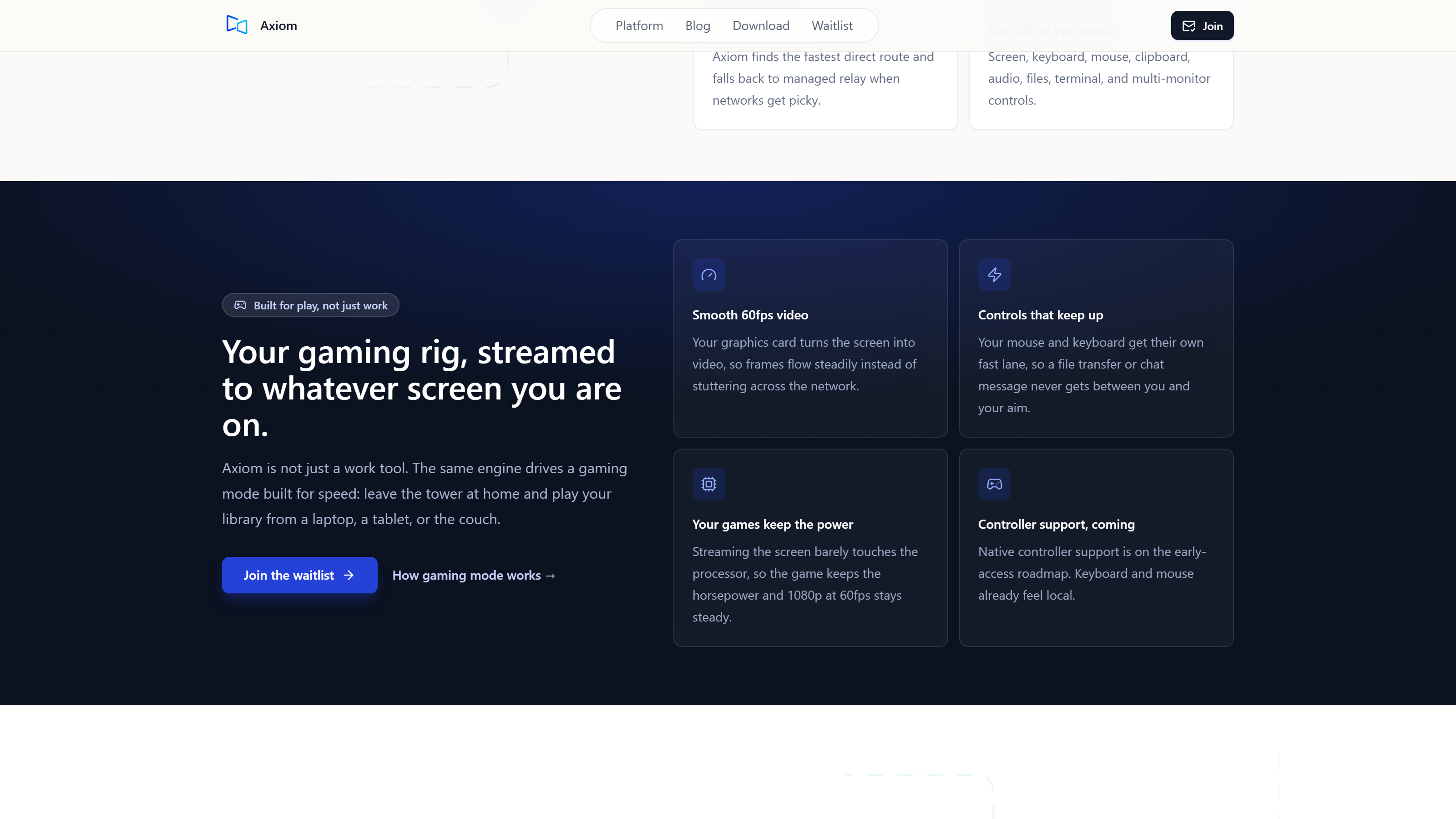
For performance, Axiom’s gaming mode targets 1080p at 60fps, a design target achieved with hardware encoding on a discrete-GPU gaming PC. This shows how browser-based streaming can still use your home hardware for fluid frame rates.
During gameplay, mouse and keyboard input travels on a dedicated low-latency channel separate from file transfers and other traffic.
Moonlight is not the villain here—it’s free and it’s fast. But for anyone who isn’t a network person and wants to skip the router setup, Axiom is definitely the easier road.
What are the downsides of streaming your own PC?
I’ll be honest with you, you have to weigh the other side honestly before committing to a remote setup. When you become your own cloud provider, you take on all the infrastructure risks.
You’re entirely reliant on your home power grid and your local ISP. If your home internet goes down while you’re on a business trip, your access goes down with it. If a severe storm knocks out power to your neighborhood, your gaming PC shuts off, and you can’t turn it back on from a hotel room across the country.
Hardware crashes present another physical barrier. If a game freezes your entire system and requires a hard manual reboot, you’re locked out until you physically walk back into your bedroom to press the power button.
Peripherals can also cause friction. Getting controllers to pass through perfectly can be tricky depending on the software you use. Windows needs to believe an Xbox or PlayStation controller is physically plugged into the home PC, which requires complex virtual driver emulation. Native controller support is on the early-access roadmap for Axiom, but not yet shipped, so mouse and keyboard are best for now.
Even though there are downsides to relying on your own home connection, the good by far outweighs the bad.
Ready to leave the heavy hardware at home?
The puppet strings are invisible now, and they stretch across the globe. You no longer need to pack a massive cooling pad, a bulky power brick, and a ten-pound laptop just to play your library on the road. The hardware you already built is sitting in your room, waiting for instructions.
Try playing your favorite PC game from your local coffee shop this weekend. Take a thin, light laptop, connect to the public Wi-Fi, and see how it feels to command your home rig from a few miles away.
Next week, we’re testing exactly how much battery life you save by streaming a game to a laptop instead of rendering it locally.
Just because you weren’t born with fiber internet doesn’t mean there’s no point in trying remote gaming—it just means you pick the tool that does the work for you.
Does remote gaming use a lot of data?
Yes, streaming video requires a constant flow of data. If you stream at 1080p and 60 frames per second, you’ll likely consume anywhere from 3 to 10 gigabytes of data per hour depending on your bitrate settings. If you’re playing on a hotel Wi-Fi network, this is rarely an issue. However, if you’re tethering to a mobile phone hotspot, you need to watch your data caps closely to avoid throttling.
Do I need to leave my home PC turned on all the time?
To connect to your PC, it must be powered on and awake. If your computer goes to sleep or hibernates, the host software stops running, and you can’t connect. Many users adjust their Windows power settings to prevent the PC from sleeping while they’re traveling. There are advanced networking techniques like Wake-on-LAN that allow you to send a signal to boot the PC remotely, but they require specific motherboard support and router configurations to work over the internet.
Can I use a controller for remote gaming?
You can, but the experience depends entirely on the client software you choose. Tools like Moonlight and Parsec have great virtual controller drivers that pass your gamepad inputs through to the host PC perfectly. Other browser-based tools are still developing this feature. If your software supports it, your home PC will recognize your remote controller exactly as if it were plugged into the front USB port.